
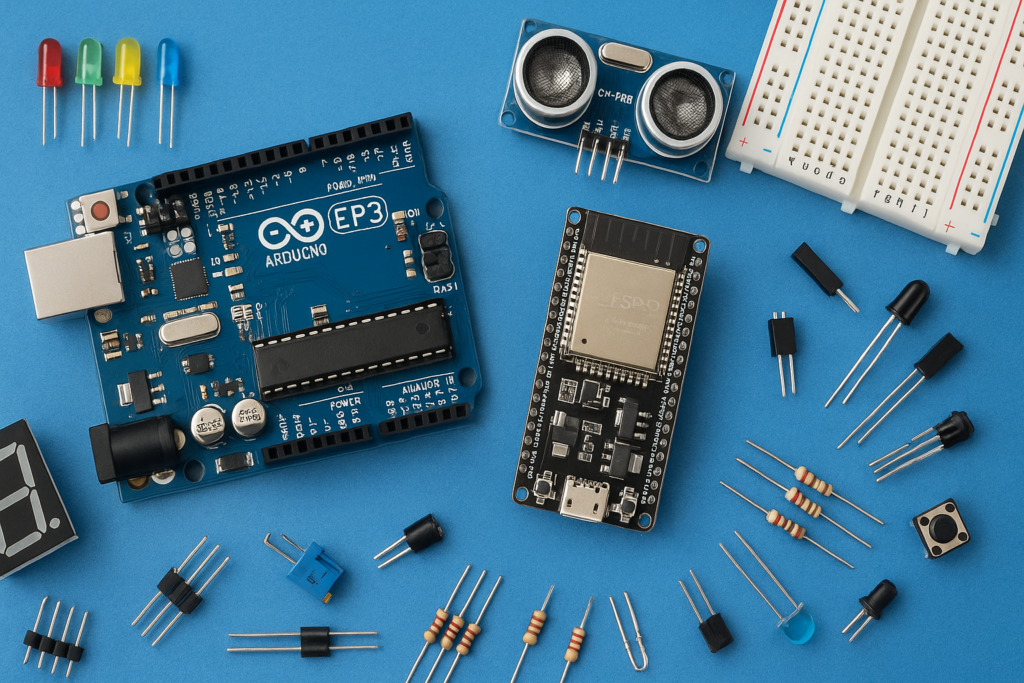
This article guides you through building a precise and visually intuitive temperature monitoring system using an Arduino Uno, a DS18B20 digital temperature sensor, and a TM1637 4-digit LED display module. This simple project is perfect for monitoring room temperature or creating a basic thermal alarm system.
Components Required (Affiliated Links)
- Arduino (Any) https://amzn.to/491S9wd DS18B20
- Temperature Sensor module https://amzn.to/4ojhJS8 TM1637
- Digit Display Module https://amzn.to/4hI2fEQ
- Buzzer https://amzn.to/3X28MR0
- Female -Female Jumper Wires-7 https://amzn.to/4oK9IFk
1: Setting up the Arduino IDE
Before wiring, you need to prepare your Arduino environment by installing the necessary software libraries:
- Connect your Arduino to your computer.
- Open the Arduino IDE.
- Install the following essential libraries:
- OneWire Library: Required for communication with the DS18B20 sensor.
- DallasTemperature Library: Provides easy-to-use functions for reading temperature data from the DS18B20.
- TM1637 Library: Manages the display of digits on the 4-digit LED module.
- Upload the main project code (given below) to your Arduino board. This code handles reading the sensor data, displaying it, and controlling the optional buzzer alarm.
2: Wiring the Temperature Sensor (DS18B20)
The DS18B20 is a digital sensor known for its accuracy. Its setup uses the OneWire communication protocol, requiring only a single data pin.
| DS18B20 Pin | Arduino Pin |
| VCC | 5V Pin |
| GND (Ground) | GND Pin |
| Signal Pin | Digital Pin 2 |
3: Wiring the 4-Digit Display (TM1637)
The TM1637 display module communicates with the Arduino using two pins: a data pin and a clock pin.
| TM1637 Pin | Arduino Pin |
| VCC | 3.3V Pin |
| GND (Ground) | GND Pin |
| DIO (Data Input/Output) | Digital Pin 4 |
| CLK (Clock) | Digital Pin 3 |
4: Adding the Optional Alarm (Buzzer)
For basic alarm functionality, a buzzer can be added to sound when the temperature crosses a predefined threshold (e.g., 32° Celsius).
- Connect one end of the buzzer to a dedicated Digital Pin on the Arduino.
- Connect the other end of the buzzer to the GND Pin of the Arduino.
Code
#include <OneWire.h>
#include <DallasTemperature.h>
#include <TM1637Display.h>

// Pin Definitions
#define ONE_WIRE_BUS 2   // DS18B20 data pin
#define CLK 3            // TM1637 clock pin
#define DIO 4            // TM1637 data pin
#define BUZZER_PIN 11    // Buzzer pin

// Setup objects
OneWire oneWire(ONE_WIRE_BUS);
DallasTemperature sensors(&oneWire);
TM1637Display display(CLK, DIO);

void setup() {
  Serial.begin(9600);
  sensors.begin();
  display.setBrightness(0x0f); // Max brightness for LEDs
  pinMode(BUZZER_PIN, OUTPUT); // Set buzzer pin as output
  digitalWrite(BUZZER_PIN, LOW); // Ensure buzzer is off initially

  Serial.println("Testing colon dots...");
  display.showNumberDecEx(1234, 0x40, false); // Lower dot
  delay(1000);
  display.showNumberDecEx(1234, 0x80, false); // Upper dot
  delay(1000);
  display.showNumberDecEx(1234, 0xC0, false); // Both dots
  delay(1000);
}

void loop() {
  sensors.requestTemperatures();
  float tempC = sensors.getTempCByIndex(0);

  if (tempC == DEVICE_DISCONNECTED_C) {
    Serial.println("Sensor disconnected!");
    display.showNumberDec(8888); // Show error
    digitalWrite(BUZZER_PIN, LOW); // Ensure buzzer is off if sensor disconnected
  } else {
    int tempDisplay = (int)(tempC * 100);
    display.showNumberDecEx(tempDisplay, 0x40, false, 4, 0); // Show temperature
    Serial.print("Temperature: ");
    Serial.print(tempC);
    Serial.println(" C");
    Serial.print("Display value: ");
    Serial.println(tempDisplay);

    // Check if temperature crosses 32°C
    if (tempC > 32.0) {
      digitalWrite(BUZZER_PIN, HIGH); // Turn buzzer ON
    } else {
      digitalWrite(BUZZER_PIN, LOW); // Turn buzzer OFF
    }
  }

  delay(60000); // 1 minute delay
}
Operation and Testing
- Power up the Arduino using a USB cable or external power source.
- The 4-digit display will immediately show the current temperature reading from the DS18B20. If the sensor is not correctly connected or the Arduino fails to receive a signal, the display may show an error such as “8888”.
- Alarm Test: To test the alarm, manually increase the temperature around the sensor (e.g., using a candle). When the temperature reading crosses the hardcoded threshold (e.g., 32°C), the buzzer will sound, confirming the alarm functionality is active.
This project offers a robust and accurate way to monitor environmental temperature, serving as an excellent foundation for more complex temperature-based automation systems.
Watch the full video tutorial here: How to Make an Arduino Temperature Sensor Project | DS18B20 + 4 Digit Display