
What if you could check whether your Zerodha holdings are in profit or loss without opening the Zerodha app every few minutes?
That little thought is what led to this project.
Instead of checking the phone, I wanted the overall holdings Profit/Loss percentage to appear on a small LED matrix sitting on my desk.
So I connected Zerodha data with Python, sent the calculated P&L percentage over Wi-Fi to an ESP32, and displayed it on a MAX7219 4-in-1 LED matrix.
The result looks something like this:
-0.25% (Yep, my portfolio is currently negative!!!!)
Simple idea. But it brings together Python, ESP32, Wi-Fi, online data and an LED display in one practical project.
And yes — watching your portfolio percentage appear on a physical display is much more satisfying than I expected.
What Are We Building?
The goal is very simple.
We want to take the overall Profit/Loss percentage of our Zerodha holdings and show it on a MAX7219 LED matrix.
The complete flow looks like this:
Zerodha Holdings
↓
Python Program
↓
Calculate Holdings P&L %
↓
Wi-Fi
↓
ESP32
↓
MAX7219 LED Matrix
↓
Display the Percentage
For example, if your total holdings are currently down by 0.25%, the display can show:
-0.25%
If they are up by 1.86%, it can show:
+1.86%
This project is not displaying individual stock prices.
It is displaying the overall Profit/Loss percentage of the holdings.
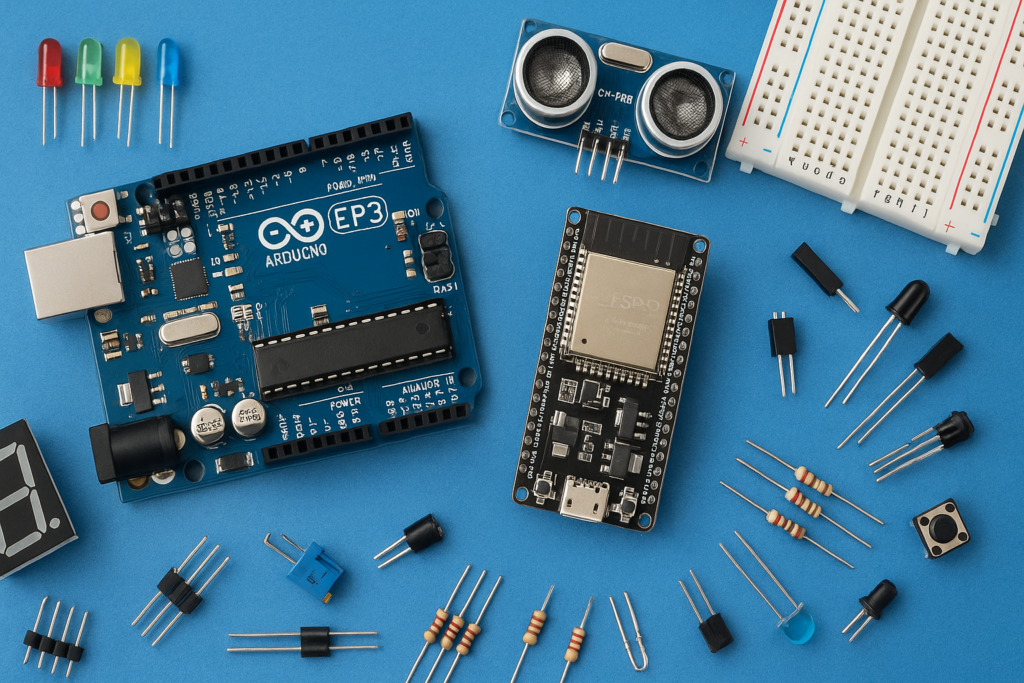
Components Required
| Component Name | Qty | Buy from Amazon |
|---|---|---|
| ESP32 Development Board | 1 | https://link.amazon/B0exx90HK |
| MAX7219 4-in-1 LED Matrix Display | 1 | https://link.amazon/B0dWI4AAO |
| Jumper Wires | As required | https://amzn.to/430CfOo |
Amazon Affiliate Disclosure: Some of the links in this article are Amazon affiliate links. If you purchase through these links, BlueDot Electronics may earn a small commission at no extra cost to you.
ESP32 to MAX7219 Connections
For a typical ESP32 development board and FC-16 style MAX7219 display:
| MAX7219 | ESP32 |
|---|---|
| VCC | 5V |
| GND | GND |
| DIN | GPIO 23 |
| CS | GPIO 5 |
| CLK | GPIO 18 |
GPIO 23 is normally used as MOSI on the ESP32’s VSPI interface.
GPIO 18 is normally the SPI clock pin.
GPIO 5 can be used as the chip-select pin.
A Small Power Tip
A 4-in-1 MAX7219 display can consume noticeable current when many LEDs are bright.
For testing at moderate brightness, powering it from the ESP32’s USB 5V supply may work fine.
But if you notice:
• ESP32 restarting
• display flickering
• random characters
• brightness changing
use a proper regulated 5V supply for the display and connect the power supply GND to the ESP32 GND.
This gives the project a much more reliable power source.
Software Required
You will need:
• Arduino IDE
• ESP32 board package
• MD_Parola library
• MD_MAX72XX library
• Python
• requests library
• Officially supported Zerodha/Kite data access
The MD_Parola library makes displaying and scrolling text on MAX7219 modules much easier.
ESP32 Code
The ESP32 creates a small web server.
Python sends the calculated percentage to this server.
The ESP32 then displays the value on the MAX7219.
// Zerodha Kite P&L — Continuous Scroll on MAX7219 4-in-1 LED Matrix
// Required Libraries: MD_Parola, MD_MAX72xx, ArduinoJson

#include <WiFi.h>
#include <WebServer.h>
#include <ArduinoJson.h>
#include <MD_Parola.h>
#include <MD_MAX72xx.h>
#include <SPI.h>

// ==================== WIFI CONFIG ====================
const char* WIFI_SSID     = "Your WIFI Name";
const char* WIFI_PASSWORD = "PASSWORD";
// ===================================================

// ==================== HARDWARE CONFIG ====================
#define HARDWARE_TYPE MD_MAX72XX::FC16_HW
#define MAX_DEVICES 4
#define DATA_PIN  23
#define CLK_PIN   18
#define CS_PIN    15
// =======================================================

MD_Parola P = MD_Parola(HARDWARE_TYPE, DATA_PIN, CLK_PIN, CS_PIN, MAX_DEVICES);
WebServer server(80);

// Custom 8x8 arrow bitmaps (character codes 1 and 2)
uint8_t arrowUp[8] = {
  0b00011000,
  0b00111100,
  0b01111110,
  0b11111111,
  0b00111100,
  0b00111100,
  0b00111100,
  0b00111100
};

uint8_t arrowDown[8] = {
  0b00111100,
  0b00111100,
  0b00111100,
  0b00111100,
  0b11111111,
  0b01111110,
  0b00111100,
  0b00011000
};

// Global data
float    g_pnl = 0.0;
char     g_direction[10] = "neutral";
char     g_scrollText[20] = "WAITING...";
volatile bool g_newData = false;

enum DisplayState { STATE_ARROW, STATE_SCROLL };
DisplayState displayState = STATE_SCROLL;
unsigned long arrowTimer = 0;

// ==================== HTTP HANDLERS ====================

void handleUpdate() {
  if (server.method() != HTTP_POST) {
    server.send(405, "text/plain", "Method Not Allowed");
    return;
  }

  String body = server.arg("plain");
  StaticJsonDocument<256> doc;
  DeserializationError err = deserializeJson(doc, body);

  if (err) {
    server.send(400, "text/plain", "Invalid JSON");
    return;
  }

  g_pnl = doc["pnl"] | 0.0;
  const char* dir = doc["direction"] | "neutral";
  strlcpy(g_direction, dir, sizeof(g_direction));

  // Format scroll text
  if (g_pnl >= 0) {
    snprintf(g_scrollText, sizeof(g_scrollText), "+%.2f%%", g_pnl);
  } else {
    snprintf(g_scrollText, sizeof(g_scrollText), "%.2f%%", g_pnl);
  }

  g_newData = true;

  Serial.printf("[HTTP] Received: %.2f%% (%s)\n", g_pnl, g_direction);
  server.send(200, "text/plain", "OK");
}

void handleRoot() {
  server.send(200, "text/plain", "Zerodha P&L Display Server is Running\n");
}

// ==================== SETUP & LOOP ====================

void setup() {
  Serial.begin(115200);
  delay(1000);

  // Register custom arrow characters
  P.addChar(1, arrowUp);
  P.addChar(2, arrowDown);

  // Init LED matrix
  P.begin();
  P.setIntensity(8);
  P.displayClear();

  // Connect WiFi
  Serial.printf("Connecting to WiFi: %s\n", WIFI_SSID);
  WiFi.begin(WIFI_SSID, WIFI_PASSWORD);

  while (WiFi.status() != WL_CONNECTED) {
    delay(500);
    Serial.print(".");
    P.displayAnimate();
  }
  Serial.printf("\nWiFi connected! IP: %s\n", WiFi.localIP().toString().c_str());

  // Show IP once
  String ipMsg = "IP " + WiFi.localIP().toString();
  P.displayScroll(ipMsg.c_str(), PA_CENTER, PA_SCROLL_LEFT, 100);
  while (!P.displayAnimate());

  // Start HTTP server
  server.on("/", handleRoot);
  server.on("/update", HTTP_POST, handleUpdate);
  server.begin();
  Serial.println("HTTP server started on port 80");

  // Start continuous scroll with "WAITING..."
  P.displayScroll(g_scrollText, PA_CENTER, PA_SCROLL_LEFT, 100);
  displayState = STATE_SCROLL;
}

void loop() {
  server.handleClient();

  switch (displayState) {

    // -------------------------------------------------
    // STATE_ARROW: Show UP/DOWN arrow for 3 seconds
    // -------------------------------------------------
    case STATE_ARROW:
      P.displayAnimate();  // Keep display alive

      if (millis() - arrowTimer >= 3000) {
        // Arrow time done → switch to continuous scroll
        displayState = STATE_SCROLL;
        P.displayScroll(g_scrollText, PA_CENTER, PA_SCROLL_LEFT, 100);
        Serial.printf("[DISP] Scrolling: %s\n", g_scrollText);
      }
      break;

    // -------------------------------------------------
    // STATE_SCROLL: Loop the text continuously
    // -------------------------------------------------
    case STATE_SCROLL:
      if (P.displayAnimate()) {
        // Finished one full scroll cycle

        if (g_newData) {
          // Fresh data arrived → show arrow first
          g_newData = false;
          displayState = STATE_ARROW;
          arrowTimer = millis();

          char arrowMsg[2];
          arrowMsg[0] = (strcmp(g_direction, "up") == 0) ? 1 : 2;
          arrowMsg[1] = '\0';

          P.displayClear();
          P.displayText(arrowMsg, PA_CENTER, 0, 0, PA_PRINT, PA_NO_EFFECT);
          Serial.printf("[DISP] Arrow: %s\n", g_direction);

        } else {
          // No new data → loop same text again (NEVER goes blank)
          P.displayScroll(g_scrollText, PA_CENTER, PA_SCROLL_LEFT, 100);
        }
      }
      break;
  }
}
After uploading the program, open Serial Monitor at:
115200 baud
You should see an IP address similar to:
192.168.1.8
Remember this IP address.
Python will send the P&L percentage to this address.
Python Side
Save the below python code in text file in your PC/Laptop then click save as and give file name as zerodha_pnl.py (.py extension tells your PC that its a python code); make sure to change your ESP32 IP
#!/usr/bin/env python3

"""
BlueDot Electronics
Zerodha Holdings P&L → ESP32 MAX7219 Display

Uses:
- Official Zerodha Kite Connect API
- Python requests library
- ESP32 HTTP server

No enctoken or kitetrader library required.
"""

import requests
import time
import sys
import hashlib
import webbrowser
import getpass

from datetime import datetime
from urllib.parse import urlparse, parse_qs

#Modify the ESP32_IP as shown in your serial monitor
ESP32_IP = "192.168.1.9"
ESP32_PORT = 80

# Fetch Zerodha P&L every 60 seconds
FETCH_INTERVAL = 60

KITE_LOGIN_URL = "https://kite.zerodha.com/connect/login"
KITE_TOKEN_URL = "https://api.kite.trade/session/token"
KITE_HOLDINGS_URL = "https://api.kite.trade/portfolio/holdings"


# These values are entered when the program starts
API_KEY = ""
API_SECRET = ""
ACCESS_TOKEN = ""

def log(message):
    timestamp = datetime.now().strftime("%H:%M:%S")
    print(f"[{timestamp}] {message}")

def get_api_credentials():
    """
    Ask the user to enter the Kite API Key and API Secret.

    The API Secret is hidden while typing.
    """

    global API_KEY
    global API_SECRET

    print("\nEnter your Zerodha Kite API credentials.")
    print("The API Secret will remain hidden while typing.\n")

    API_KEY = input("Enter API Key: ").strip()
    API_SECRET = getpass.getpass("Enter API Secret: ").strip()

    if not API_KEY:
        log("ERROR: API Key cannot be empty.")
        return False

    if not API_SECRET:
        log("ERROR: API Secret cannot be empty.")
        return False

    return True

def generate_access_token():
    """
    Open Zerodha login and generate the daily access token.

    The Redirect URL registered in the Kite developer portal
    should be:

    http://127.0.0.1:8000
    """

    global ACCESS_TOKEN

    login_url = f"{KITE_LOGIN_URL}?v=3&api_key={API_KEY}"

    print("\n======================================================")
    print("ZERODHA LOGIN")
    print("======================================================")
    print("Opening the Zerodha login page...")
    print("Complete the login and TOTP verification.")
    print()
    print("After login, the browser may display:")
    print("'This site cannot be reached'")
    print()
    print("That is normal.")
    print("Copy the COMPLETE URL from the browser address bar.")
    print("======================================================\n")

    webbrowser.open(login_url)

    redirected_url = input(
        "Paste the complete redirected URL here:\n"
    ).strip()

    if not redirected_url:
        log("ERROR: Redirected URL cannot be empty.")
        return False

    try:
        parsed_url = urlparse(redirected_url)
        query_parameters = parse_qs(parsed_url.query)

        request_token = query_parameters.get(
            "request_token",
            [None]
        )[0]

        status = query_parameters.get("status", [""])[0]

        if status == "error":
            log("Zerodha login returned an error.")
            return False

        if not request_token:
            log("ERROR: request_token was not found in the URL.")
            log("Make sure you copied the complete redirected URL.")
            return False

        # Zerodha checksum format:
        # SHA256(API_KEY + REQUEST_TOKEN + API_SECRET)

        checksum_text = API_KEY + request_token + API_SECRET

        checksum = hashlib.sha256(
            checksum_text.encode("utf-8")
        ).hexdigest()

        log("Generating the access token...")

        response = requests.post(
            KITE_TOKEN_URL,
            data={
                "api_key": API_KEY,
                "request_token": request_token,
                "checksum": checksum
            },
            headers={
                "X-Kite-Version": "3"
            },
            timeout=15
        )

        try:
            result = response.json()
        except ValueError:
            log("ERROR: Zerodha returned an invalid response.")
            log(f"HTTP status: {response.status_code}")
            return False

        if result.get("status") != "success":
            error_message = result.get(
                "message",
                "Unknown authentication error"
            )

            log(f"Authentication error: {error_message}")
            return False

        ACCESS_TOKEN = result["data"]["access_token"]

        log("Access token generated successfully.")
        log("Zerodha authentication completed.")

        return True

    except requests.exceptions.RequestException as error:
        log(f"Network error during authentication: {error}")
        return False

    except Exception as error:
        log(f"Authentication error: {error}")
        return False

def get_kite_headers():
    """
    Create the official Zerodha API authentication headers.
    """

    return {
        "Authorization": f"token {API_KEY}:{ACCESS_TOKEN}",
        "X-Kite-Version": "3",
        "Accept": "application/json"
    }

def fetch_pnl():
    """
    Fetch Zerodha holdings and calculate the total
    portfolio P&L percentage.
    """

    try:
        response = requests.get(
            KITE_HOLDINGS_URL,
            headers=get_kite_headers(),
            timeout=15
        )

        try:
            result = response.json()
        except ValueError:
            log("ERROR: Zerodha returned an invalid response.")
            log(f"HTTP status: {response.status_code}")
            return None, None

        if result.get("status") != "success":
            error_message = result.get(
                "message",
                "Unknown Zerodha API error"
            )

            error_type = result.get("error_type", "")

            log(f"Kite API error: {error_message}")

            if error_type == "TokenException":
                log("The access token has expired.")
                log("Restart the program and complete login again.")

            return None, None

        holdings = result.get("data", [])

        if not holdings:
            log("No holdings were found in the account.")
            return 0.0, "neutral"

        total_invested = 0.0
        total_current_value = 0.0

        for holding in holdings:

            settled_quantity = holding.get("quantity", 0)
            t1_quantity = holding.get("t1_quantity", 0)

            total_quantity = settled_quantity + t1_quantity

            average_price = holding.get("average_price", 0)
            last_price = holding.get("last_price", 0)

            if total_quantity <= 0:
                continue

            if average_price <= 0:
                continue

            invested_value = total_quantity * average_price
            current_value = total_quantity * last_price

            total_invested += invested_value
            total_current_value += current_value

        if total_invested <= 0:
            log("Unable to calculate invested value.")
            return 0.0, "neutral"

        total_pnl = total_current_value - total_invested

        pnl_percentage = (
            total_pnl / total_invested
        ) * 100

        if pnl_percentage > 0:
            direction = "up"
        elif pnl_percentage < 0:
            direction = "down"
        else:
            direction = "neutral"

        pnl_percentage = round(pnl_percentage, 2)

        sign = "+" if pnl_percentage > 0 else ""

        log(
            f"Portfolio P&L: "
            f"{sign}{pnl_percentage}% | "
            f"₹{total_pnl:,.2f}"
        )

        return pnl_percentage, direction

    except requests.exceptions.Timeout:
        log("ERROR: Zerodha API request timed out.")
        return None, None

    except requests.exceptions.ConnectionError:
        log("ERROR: Cannot connect to the Zerodha API.")
        return None, None

    except requests.exceptions.RequestException as error:
        log(f"Zerodha network error: {error}")
        return None, None

    except Exception as error:
        log(f"ERROR while calculating P&L: {error}")
        return None, None

def send_to_esp32(pnl_percentage, direction):
    """
    Send P&L percentage and direction to ESP32
    using an HTTP POST request.
    """

    url = f"http://{ESP32_IP}:{ESP32_PORT}/update"

    payload = {
        "pnl": pnl_percentage,
        "direction": direction
    }

    try:
        response = requests.post(
            url,
            json=payload,
            timeout=5
        )

        if response.status_code == 200:

            if pnl_percentage > 0:
                sign = "+"
            else:
                sign = ""

            log(
                f"Sent to ESP32: "
                f"{sign}{pnl_percentage}% "
                f"({direction})"
            )

            return True

        log(
            f"ESP32 returned HTTP status "
            f"{response.status_code}"
        )

        return False

    except requests.exceptions.ConnectionError:
        log("ERROR: Cannot connect to ESP32.")
        log("Check the ESP32 IP address, Wi-Fi and power.")
        return False

    except requests.exceptions.Timeout:
        log("ERROR: ESP32 connection timed out.")
        return False

    except requests.exceptions.RequestException as error:
        log(f"ESP32 network error: {error}")
        return False

    except Exception as error:
        log(f"ERROR while sending data to ESP32: {error}")
        return False

def main():

    log("=" * 58)
    log("BlueDot Electronics")
    log("ZERODHA P&L  →  ESP32 MAX7219 DISPLAY")
    log("=" * 58)
    log(f"ESP32 address : {ESP32_IP}:{ESP32_PORT}")
    log(f"Fetch interval: {FETCH_INTERVAL} seconds")
    log("=" * 58)

    # Ask for API Key and API Secret
    if not get_api_credentials():
        log("Program stopped because credentials are missing.")
        sys.exit(1)

    # Generate daily access token
    if not generate_access_token():
        log("Unable to authenticate with Zerodha.")
        sys.exit(1)

    print()
    log("Starting portfolio updates...")
    log("Press CTRL+C to stop the program.")
    log("=" * 58)

    while True:

        pnl_percentage, direction = fetch_pnl()

        if pnl_percentage is not None:
            send_to_esp32(
                pnl_percentage,
                direction
            )
        else:
            log("Skipping ESP32 update due to fetch error.")

        log(f"Next update in {FETCH_INTERVAL} seconds.")
        print()

        time.sleep(FETCH_INTERVAL)

if __name__ == "__main__":

    try:
        main()

    except KeyboardInterrupt:
        print()
        log("Program stopped by user.")
        sys.exit(0)

    except Exception as error:
        print()
        log(f"Unexpected program error: {error}")
        sys.exit(1)
If everything is working properly, the ESP32 should immediately receive:
-0.25
and your LED matrix will display:
-0.25%
That is the moment when the project becomes really fun.
Troubleshooting
Display Shows Nothing
Check:
• MAX7219 VCC
• GND
• DIN
• CLK
• CS connection
Also confirm that the display type is correctly set to:
MD_MAX72XX::FC16_HW
ESP32 Is Not Receiving the Percentage
Check the IP address shown in Serial Monitor.
The IP address in your Python program must match the ESP32’s current IP address.
Also make sure:
Computer → same Wi-Fi network
ESP32 → same Wi-Fi network
Python Shows Connection Error
Try opening this in your computer browser:
http://ESP32-IP/update?pnl=1.25
For example:
http://192.168.1.8/update?pnl=1.25
If the LED matrix shows:
1.25%
then your ESP32 side is working.
That means the problem is probably on the Python side.
This is one of the easiest ways to troubleshoot the project.
Display Keeps Restarting
This could be a power problem.
Reduce:
matrix.setIntensity(2);
or use an external regulated 5V power supply for the MAX7219.
Remember to connect the grounds together.
Disclaimer
This project is created purely for educational and electronics demonstration purposes.
Any holdings, portfolio values, Profit/Loss values or percentages shown in this project are used only to demonstrate how the electronics system works.
Never share your Zerodha password, OTP, API secret, access token, session cookies or other account credentials with anyone.
Use officially supported Zerodha/Kite methods for programmatic access and follow all applicable Zerodha policies and terms.
BlueDot Electronics is not affiliated with, sponsored by or endorsed by Zerodha.
Investments in securities markets are subject to market risks.
Leave a Reply