
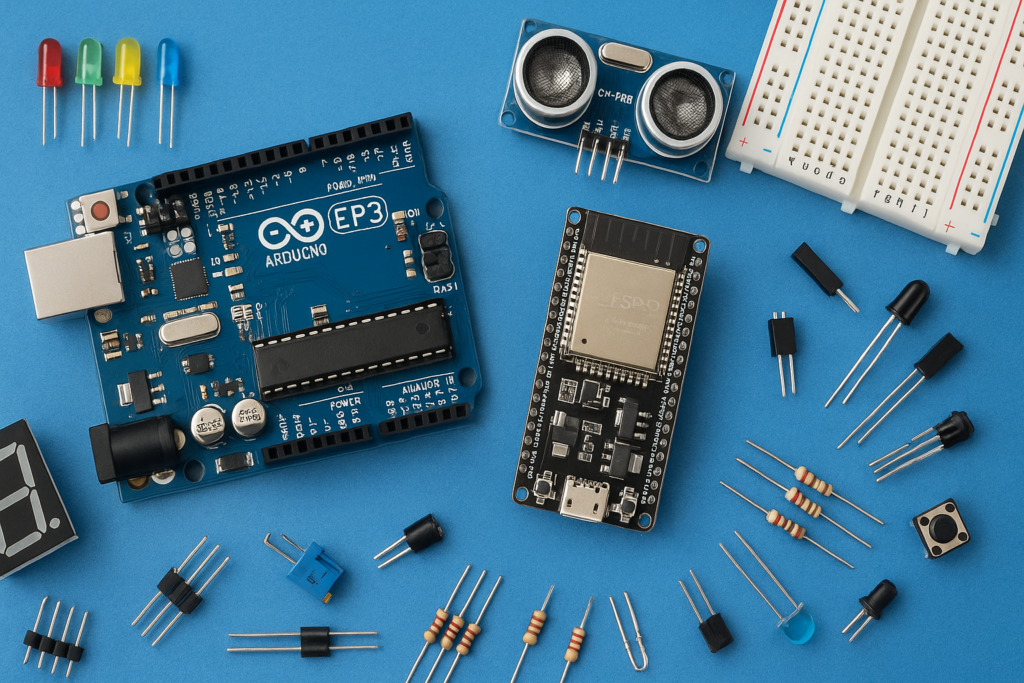
If you’re looking for an easy Arduino project to learn digital sensors, this Temperature Monitoring System using the DS18B20 is a great place to start. Unlike analog temperature sensors, the DS18B20 provides highly accurate digital temperature readings using just one data wire, making it simple to connect and program.
In this project, the Arduino continuously reads the room temperature from the DS18B20 sensor and displays the values in the Serial Monitor in real time. This project is perfect for beginners who want to understand digital sensors, OneWire communication, and temperature monitoring.
How It Works
The DS18B20 measures the surrounding temperature and sends the data digitally to the Arduino.
The Arduino:
- Reads temperature every second.
- Converts the digital data into Celsius.
- Displays the temperature on the Serial Monitor.
- Continuously updates the reading in real time.
Since the sensor is digital, it provides stable and accurate measurements without requiring analog calibration.
Components Required
| Component | Quantity |
|---|---|
| Arduino Uno/Nano ➤ https://amzn.to/4dBqpHp | 1 |
| DS18B20 Temperature Sensor Module ➤ https://amzn.to/4vtFoTc | 1 |
| Jumper Wires ➤ https://amzn.to/43OCfOo | 3 |
Circuit Connections
| DS18B20 Module | Arduino |
|---|---|
| VCC | 5V |
| GND | GND |
| DATA | Digital Pin 2 |
Code
#include <OneWire.h>
#include <DallasTemperature.h>

// Data wire is plugged into digital pin 2 on the Arduino
#define ONE_WIRE_BUS 2

// Setup a oneWire instance to communicate with any OneWire device
OneWire oneWire(ONE_WIRE_BUS);

// Pass our oneWire reference to Dallas Temperature sensor
DallasTemperature sensors(&oneWire);

void setup() {
  // Start the serial communication
  Serial.begin(9600);
  Serial.println("DS18B20 Temperature Sensor Test");

  // Start up the library
  sensors.begin();
}

void loop() {
  // Send the command to get temperatures
  sensors.requestTemperatures();

  // Fetch the temperature in Celsius
  float tempC = sensors.getTempCByIndex(0);

  // Check if the reading is valid
  if(tempC != DEVICE_DISCONNECTED_C) {
    Serial.print("Room Temperature: ");
    Serial.print(tempC);
    Serial.print("°C  |  ");

    // Convert to Fahrenheit
    float tempF = DallasTemperature::toFahrenheit(tempC);
    Serial.print(tempF);
    Serial.println("°F");
  } else {
    Serial.println("Error: Could not read temperature data");
  }

  // Wait 2 seconds before taking the next reading
  delay(2000);
}
Applications
- Room temperature monitoring
- Weather stations
- Home automation
- Smart cooling systems
- IoT temperature sensing