
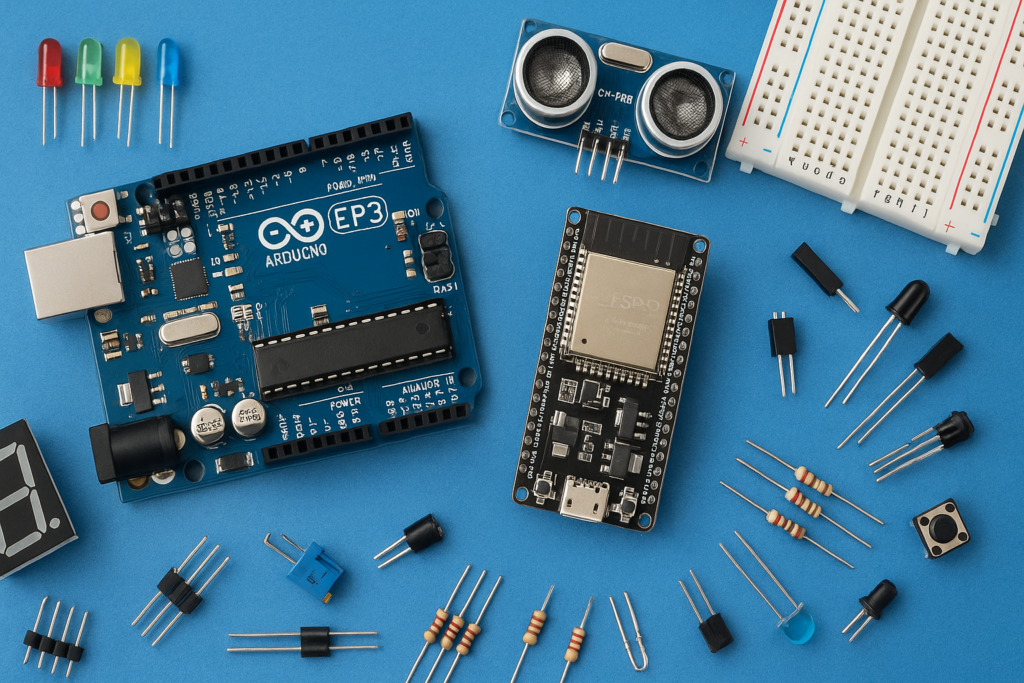
This beginner-friendly project is a great way to build a Radar using Arduino with Ultrasonic sensor
This DIY radar works by rotating an ultrasonic sensor across a 180° range using a servo motor. The sensor emits sound waves (we can’t here those sounds), which bounce off nearby objects and return as echoes. By measuring the time taken for the echo to return, the Arduino calculates the distance.
The collected data (angle + distance) is then sent to your computer, where Processing software converts it into a real-time radar-style display—just like you see in movies.
Components Required
- Arduino UNO ➤ https://amzn.to/4t4KEvx HC-SR04
- Ultrasonic Sensor ➤ https://amzn.to/4chsz63
- Servo Motor (SG90 / Tower Pro) ➤ https://amzn.to/3OkFyfn
- Jumper Wires (Male-to-Male & Male-to-Female) ➤ https://amzn.to/4tGkNde
- USB Cable (for Arduino)
- Glue Gun ➤ https://amzn.to/4efcMr6
Circuit Connections
1. Ultrasonic Sensor (HC-SR04)
- VCC → 5V (Arduino)
- GND → GND (Arduino)
- TRIG → Pin 10
- ECHO → Pin 11
2. Servo Motor (SG90)
- VCC (Red) → 5V (Arduino)
- GND (Brown/Black) → GND (Arduino)
- Signal (Orange/Yellow) → Pin 12
Software Setup
1. Arduino Code
Upload the code in your Arduino IDE
Don’t forget to CLOSE the serial monitor in Arduino IDE, after uploading the code
// Includes the Servo library

#include <Servo.h>.

// Defines Trig and Echo pins of the Ultrasonic Sensor

const int trigPin = 10;

const int echoPin = 11;

// Variables for the duration and the distance

long duration;

int distance;

Servo myServo; // Creates a servo object for controlling the servo motor

void setup() {

  pinMode(trigPin, OUTPUT); // Sets the trigPin as an Output

  pinMode(echoPin, INPUT); // Sets the echoPin as an Input

  Serial.begin(9600);

  myServo.attach(12); // Defines on which pin is the servo motor attached

}

void loop() {

  // rotates the servo motor from 15 to 165 degrees

  for(int i=15;i<=165;i++){

  myServo.write(i);

  delay(30);

  distance = calculateDistance();// Calls a function for calculating the distance measured by the Ultrasonic sensor for each degree


  Serial.print(i); // Sends the current degree into the Serial Port

  Serial.print(","); // Sends addition character right next to the previous value needed later in the Processing IDE for indexing

  Serial.print(distance); // Sends the distance value into the Serial Port

  Serial.print("."); // Sends addition character right next to the previous value needed later in the Processing IDE for indexing

  }

  // Repeats the previous lines from 165 to 15 degrees

  for(int i=165;i>15;i--){

  myServo.write(i);

  delay(30);

  distance = calculateDistance();

  Serial.print(i);

  Serial.print(",");

  Serial.print(distance);

  Serial.print(".");

  }

}

// Function for calculating the distance measured by the Ultrasonic sensor

int calculateDistance(){


  digitalWrite(trigPin, LOW);

  delayMicroseconds(2);

  // Sets the trigPin on HIGH state for 10 micro seconds

  digitalWrite(trigPin, HIGH);

  delayMicroseconds(10);

  digitalWrite(trigPin, LOW);

  duration = pulseIn(echoPin, HIGH); // Reads the echoPin, returns the sound wave travel time in microseconds

  distance= duration*0.034/2;

  return distance;

}
2. Processing Interface
Processing is used to:
- Read serial data from Arduino
- Draw a radar-like interface
- Display:
- A sweeping green line (sensor movement)
- Red markers where objects are detected
Upload the below code in your processing software. Please make sure to add correct COM port in the code.
import processing.serial.*; // imports library for serial communication

import java.awt.event.KeyEvent; // imports library for reading the data from the serial port

import java.io.IOException;

Serial myPort; // defines Object Serial

// defubes variables

String angle="";

String distance="";

String data="";

String noObject;

float pixsDistance;

int iAngle, iDistance;

int index1=0;

int index2=0;

PFont orcFont;

void setup() {


 size (1200, 700); //SCREEN RESOLUTION

 smooth();

 myPort = new Serial(this,"COM3", 9600); // check your COM port; starts the serial communication

 myPort.bufferUntil('.'); // reads the data from the serial port up to the character '.'.

}

void draw() {


  fill(98,245,31);

  // simulating motion blur and slow fade of the moving line

  noStroke();

  fill(0,4);

  rect(0, 0, width, height-height*0.065);


  fill(98,245,31); // green color

  // calls the functions for drawing the radar

  drawRadar();

  drawLine();

  drawObject();

  drawText();

}

void serialEvent (Serial myPort) { // starts reading data from the Serial Port

  // reads the data from the Serial Port up to the character '.' and puts it into the String variable "data".

  data = myPort.readStringUntil('.');

  data = data.substring(0,data.length()-1);


  index1 = data.indexOf(","); // find the character ',' and puts it into the variable "index1"

  angle= data.substring(0, index1);

  distance= data.substring(index1+1, data.length());

  iAngle = int(angle);

  iDistance = int(distance);

}

void drawRadar() {

  pushMatrix();

  translate(width/2,height-height*0.074);

  noFill();

  strokeWeight(2);

  stroke(98,245,31);

  arc(0,0,(width-width*0.0625),(width-width*0.0625),PI,TWO_PI);

  arc(0,0,(width-width*0.27),(width-width*0.27),PI,TWO_PI);

  arc(0,0,(width-width*0.479),(width-width*0.479),PI,TWO_PI);

  arc(0,0,(width-width*0.687),(width-width*0.687),PI,TWO_PI);

  line(-width/2,0,width/2,0);

  line(0,0,(-width/2)*cos(radians(30)),(-width/2)*sin(radians(30)));

  line(0,0,(-width/2)*cos(radians(60)),(-width/2)*sin(radians(60)));

  line(0,0,(-width/2)*cos(radians(90)),(-width/2)*sin(radians(90)));

  line(0,0,(-width/2)*cos(radians(120)),(-width/2)*sin(radians(120)));

  line(0,0,(-width/2)*cos(radians(150)),(-width/2)*sin(radians(150)));

  line((-width/2)*cos(radians(30)),0,width/2,0);

  popMatrix();

}

void drawObject() {

  pushMatrix();

  translate(width/2,height-height*0.074);

  strokeWeight(9);

  stroke(255,10,10); // red color

  pixsDistance = iDistance*((height-height*0.1666)*0.025);

  // limiting the range to 40 cms

  if(iDistance<40){

  line(pixsDistance*cos(radians(iAngle)),-pixsDistance*sin(radians(iAngle)),(width-width*0.505)*cos(radians(iAngle)),-(width-width*0.505)*sin(radians(iAngle)));

  }

  popMatrix();

}

void drawLine() {

  pushMatrix();

  strokeWeight(9);

  stroke(30,250,60);

  translate(width/2,height-height*0.074); // moves the starting coordinats to new location

  line(0,0,(height-height*0.12)*cos(radians(iAngle)),-(height-height*0.12)*sin(radians(iAngle))); // draws the line according to the angle

  popMatrix();

}

void drawText() { // draws the texts on the screen


  pushMatrix();

  if(iDistance>40) {

  noObject = "Out of Range";

  }

  else {

  noObject = "In Range";

  }

  fill(0,0,0);

  noStroke();

  rect(0, height-height*0.0648, width, height);

  fill(98,245,31);

  textSize(25);


  text("10cm",width-width*0.3854,height-height*0.0833);

  text("20cm",width-width*0.281,height-height*0.0833);

  text("30cm",width-width*0.177,height-height*0.0833);

  text("40cm",width-width*0.0729,height-height*0.0833);

  textSize(40);

  text("BDE", width-width*0.875, height-height*0.0277);

  text("Angle: " + iAngle +" °", width-width*0.48, height-height*0.0277);

  text("Distance: ", width-width*0.26, height-height*0.0277);

  if(iDistance<40) {

  text("        " + iDistance +" cm", width-width*0.225, height-height*0.0277);

  }

  textSize(25);

  fill(98,245,60);

  translate((width-width*0.4994)+width/2*cos(radians(30)),(height-height*0.0907)-width/2*sin(radians(30)));

  rotate(-radians(-60));

  text("30°",0,0);

  resetMatrix();

  translate((width-width*0.503)+width/2*cos(radians(60)),(height-height*0.0888)-width/2*sin(radians(60)));

  rotate(-radians(-30));

  text("60°",0,0);

  resetMatrix();

  translate((width-width*0.507)+width/2*cos(radians(90)),(height-height*0.0833)-width/2*sin(radians(90)));

  rotate(radians(0));

  text("90°",0,0);

  resetMatrix();

  translate(width-width*0.513+width/2*cos(radians(120)),(height-height*0.07129)-width/2*sin(radians(120)));

  rotate(radians(-30));

  text("120°",0,0);

  resetMatrix();

  translate((width-width*0.5104)+width/2*cos(radians(150)),(height-height*0.0574)-width/2*sin(radians(150)));

  rotate(radians(-60));

  text("150°",0,0);

  popMatrix();

}
How It Works
- The servo rotates the ultrasonic sensor step-by-step
- At each angle, the sensor measures distance
- Arduino sends data of
angle and distance - Processing software reads this data and plots it visually
- You see a live radar scanning your surroundings
- If any objects detects then it shows in the red marks in the radar